
GPT Image 2.6 Generator
Turn a simple idea into a product shot, a poster with personality, or a character worth bringing to life.
Start with your words or a reference image, then shape the look around your project.
Output size 1024×1024
Up to 4 images for Image or GIF. SVG runs stay text-only.
Choose an example or write your own prompt.
How to use GPT Image 2.6 Generator
Start with a clear idea and refine the details that make it yours.
Describe the picture you need
Give GPT Image 2.6 Generator a clear subject, setting and purpose. A handmade mug on a morning table gives the generator a clearer direction than a list of style words. For a poster, include the exact headline and explain which element should attract attention first. You can also select an example to give your first prompt a starting point.
Give the idea a visual direction
Add your own reference when an existing product, character or composition matters. Describe what should stay recognizable and what you want to change. Choose a format for the intended use, then consider the frame and level of detail. Keep the first brief focused so you have a useful basis for deciding what to adjust next.
Generate, review and refine
Submit your brief, then review the image against the original goal. Look at the subject, composition, text and small details rather than judging only the overall style. When a revision is needed, describe one clear change and preserve the parts you like. Review any finished artwork in its intended layout before using it in a campaign or design.
A starting point for your next creative project
Give everyday briefs a visual direction, from a product story to an imagined world.
Tell a product story with the setting
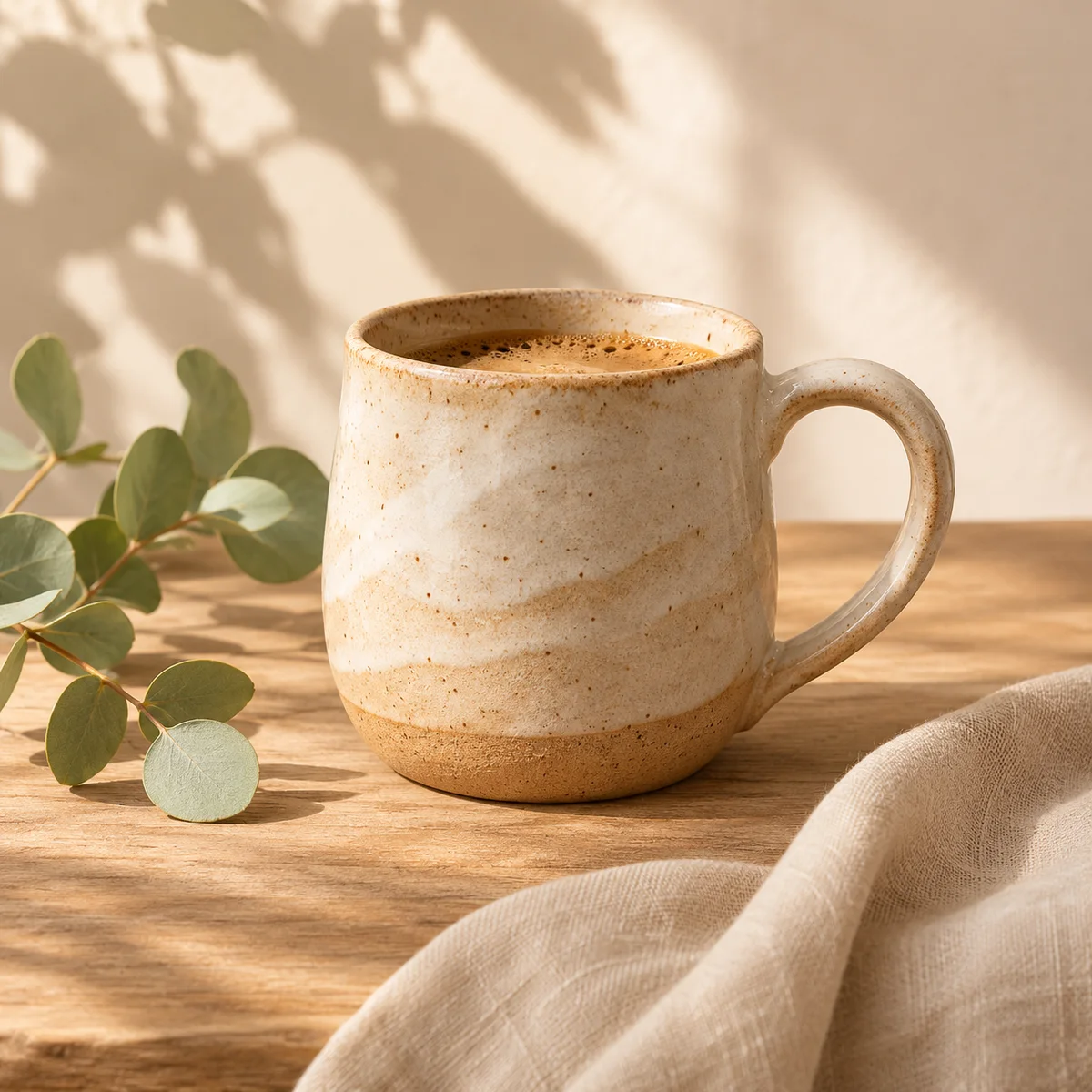
A ceramic mug can feel handmade, modern or playful depending on its surroundings. Use GPT Image 2.6 Generator to explore a softly lit tabletop, a clean studio composition or a seasonal arrangement. Describe the material, camera angle and space around the product so the picture serves a specific layout. For a real product, keep the reference close and inspect its shape, proportions and identifying details.
Give a character a world of its own
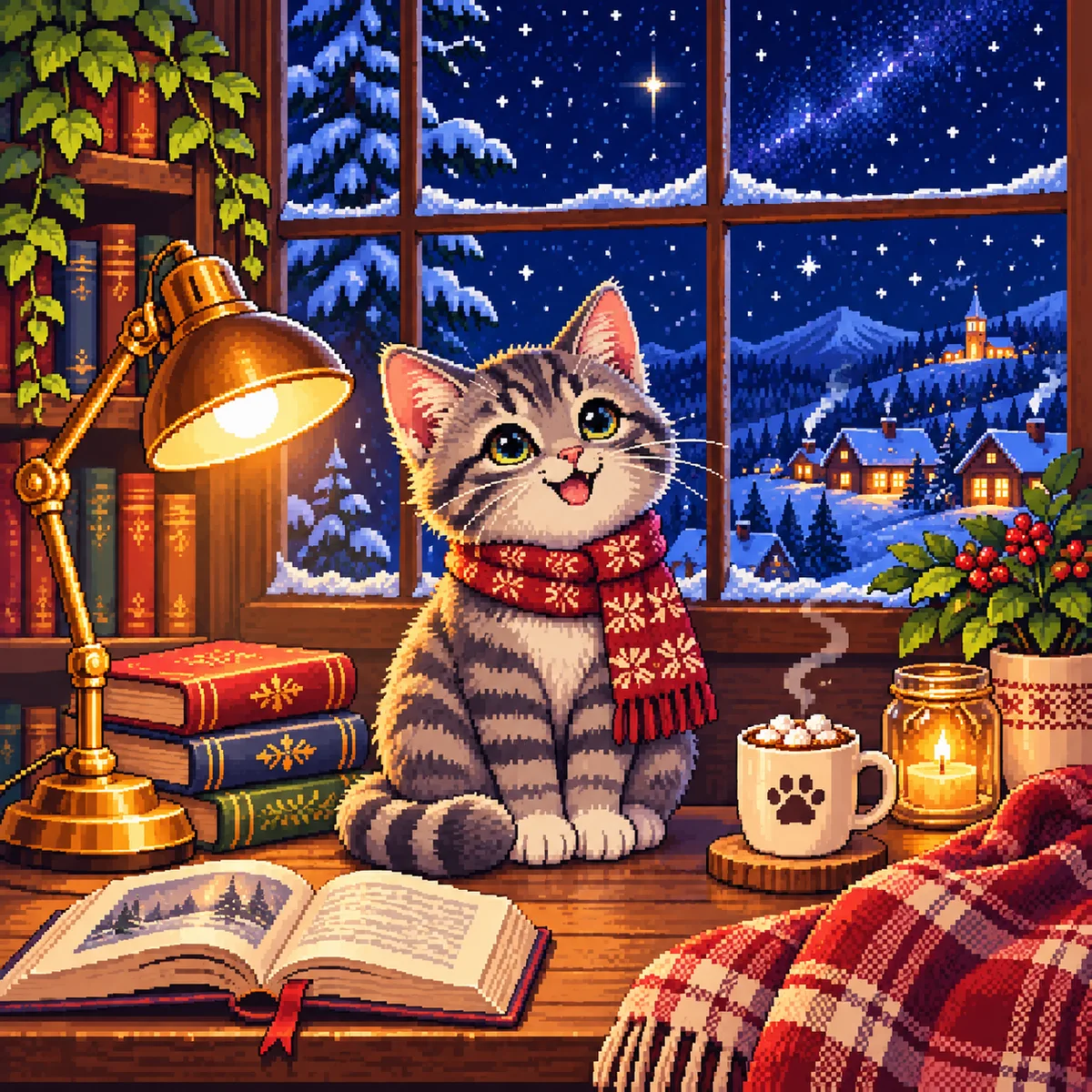
Explore character art in GPT Image 2.6 Generator, from cozy story scenes to playful mascot concepts. Think beyond the character’s appearance: a snowy window, a warm desk lamp and a small expression can establish the mood. When exploring animation, start with one readable action such as a blink or a wave. Keep the camera and setting simple so the movement remains the focus.
Find the image behind an abstract idea
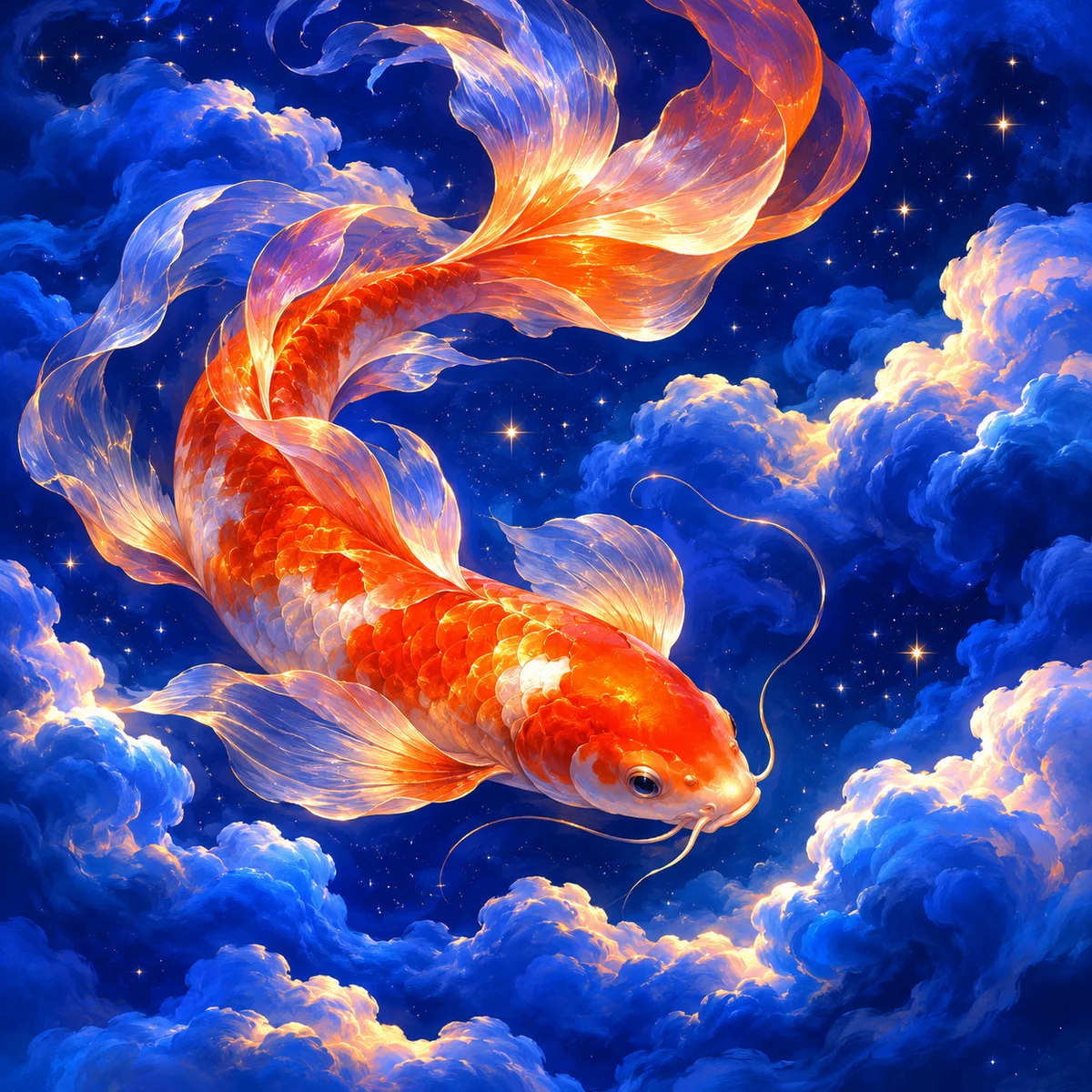
Turn a phrase, feeling or imaginative brief into a scene you can discuss. A glowing koi moving through a starry sky could become a cover concept, an editorial illustration or the visual direction for a larger project. Specify the important relationships: where the subject sits, how the light works and which colors carry the mood. Use the image to test a direction before developing the rest of the design.
Creative control around a clear brief
Shape the subject, the medium and the details without losing sight of the result.
Words that guide the composition
Give GPT Image 2.6 Generator a subject, a placement and a clear visual hierarchy. For posters, keep the exact wording separate from the scene description. Give the image one primary purpose so the composition has a clear point of focus.
References that ground an idea
Use your own image to communicate a product, character or visual direction. Pair it with a precise explanation of the intended change. A reference is a guide rather than a promise of pixel-for-pixel preservation, so check important details carefully.
A medium for the project
Still images suit photography concepts and illustrations. GIFs can express a short repeated action. SVGs suit graphics built from editable shapes and paths. Choose the medium for the way the artwork will be used, rather than treating every design as the same kind of file.
Separate detail from planning
Quality and complexity serve different purposes in GPT Image 2.6 Generator. Quality concerns rendered detail, while complexity guides planning. A focused edit and a densely arranged scene need different briefs; raising every setting is not a substitute for explaining the relationships that matter.
Questions about GPT Image 2.6 Generator
Useful distinctions before you begin your next visual brief.
GPT Image 2.6 Generator is an independent browser-based creative workspace for turning written ideas and reference images into visual concepts. The page focuses on everyday creative work such as product imagery, posters and character art. The GPT Image 2.6 model family is developed by OpenAI; this website is a separate product and is not an official OpenAI service.
OpenAI describes Flare as an image generation and editing model for fast iteration, and Sunburst as a model for detailed visual work. Think of the distinction in terms of the task: exploring several directions is different from refining a composition with many important details. Neither model name guarantees a particular outcome or completion time.
Start with the thing you want to see and the job the image needs to do. Then add the setting, viewpoint, lighting and the details that must be present. For example, describe a cream ceramic mug on a wooden breakfast table with room for a short headline. Avoid asking for several unrelated styles or competing focal points in the same brief.
A reference can communicate an existing subject or a direction that is difficult to describe with words alone. Use images you own or have permission to use. Explain what should remain recognizable and what should change. Check the result for altered features, product details and other inconsistencies; a reference does not guarantee that every element will remain identical.
Describe one subject, one action and the way the action returns to its starting point. A character blinking, a mascot waving or a small object gently turning is a focused starting brief. Specify a fixed camera when you want a stable loop. Complex movements and several simultaneous actions make the intended animation harder to communicate and assess.
No. A raster image can look like flat vector artwork while still being made of pixels. SVG is a vector document made from shapes and paths. It is useful for graphics that need to scale or be edited in a vector tool. Inspect the actual paths, spacing and small-size legibility before using a vector design in a finished product.
In OpenAI’s image model documentation, quality controls rendering detail and complexity controls how much planning goes into the image. A scene with several related objects may benefit from a different planning level than a focused background change. Higher settings do not repair a contradictory prompt, so simplify the brief before adding more complexity.
Review the applicable service and provider terms for your use, and make sure you have rights to any reference material. AI assistance does not remove responsibilities involving trademarks, copyright, privacy or a person’s likeness. Check text and factual details yourself, and review important commercial work before publishing it. This page does not promise exclusive rights or legal clearance.
OpenAI’s Images 2.6 announcement and image generation documentation explain the model family and its capabilities. Vendor capabilities and the controls offered by an individual website can differ. Use the source information to understand concepts such as Flare, Sunburst and complexity, while checking the choices shown in the workspace for your current brief.
Read the OpenAI announcement or visit our About page for product and contact information.
Give your next idea a picture
Start your next visual brief in GPT Image 2.6 Generator. Describe the subject, scene and details that make it yours.